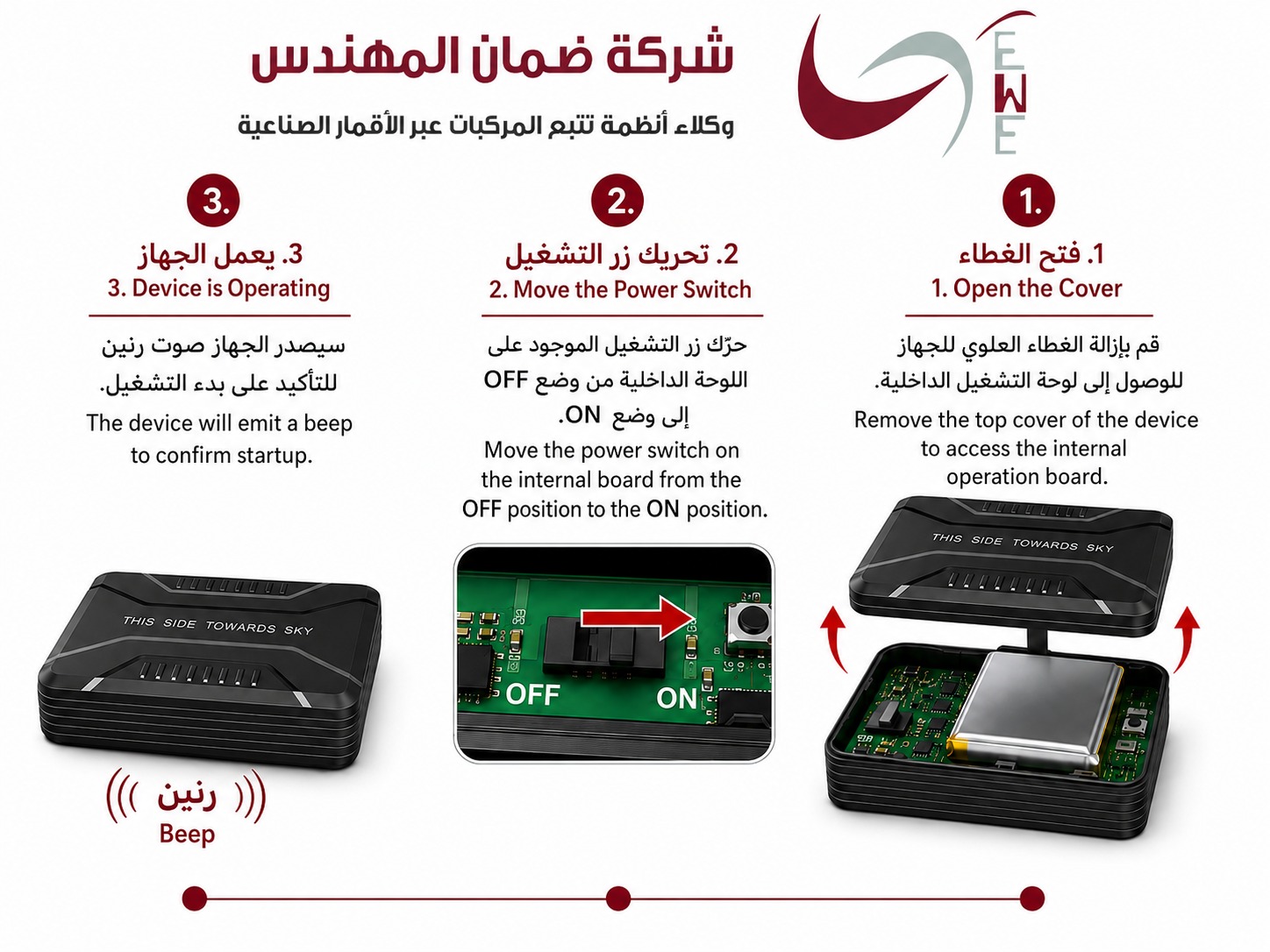
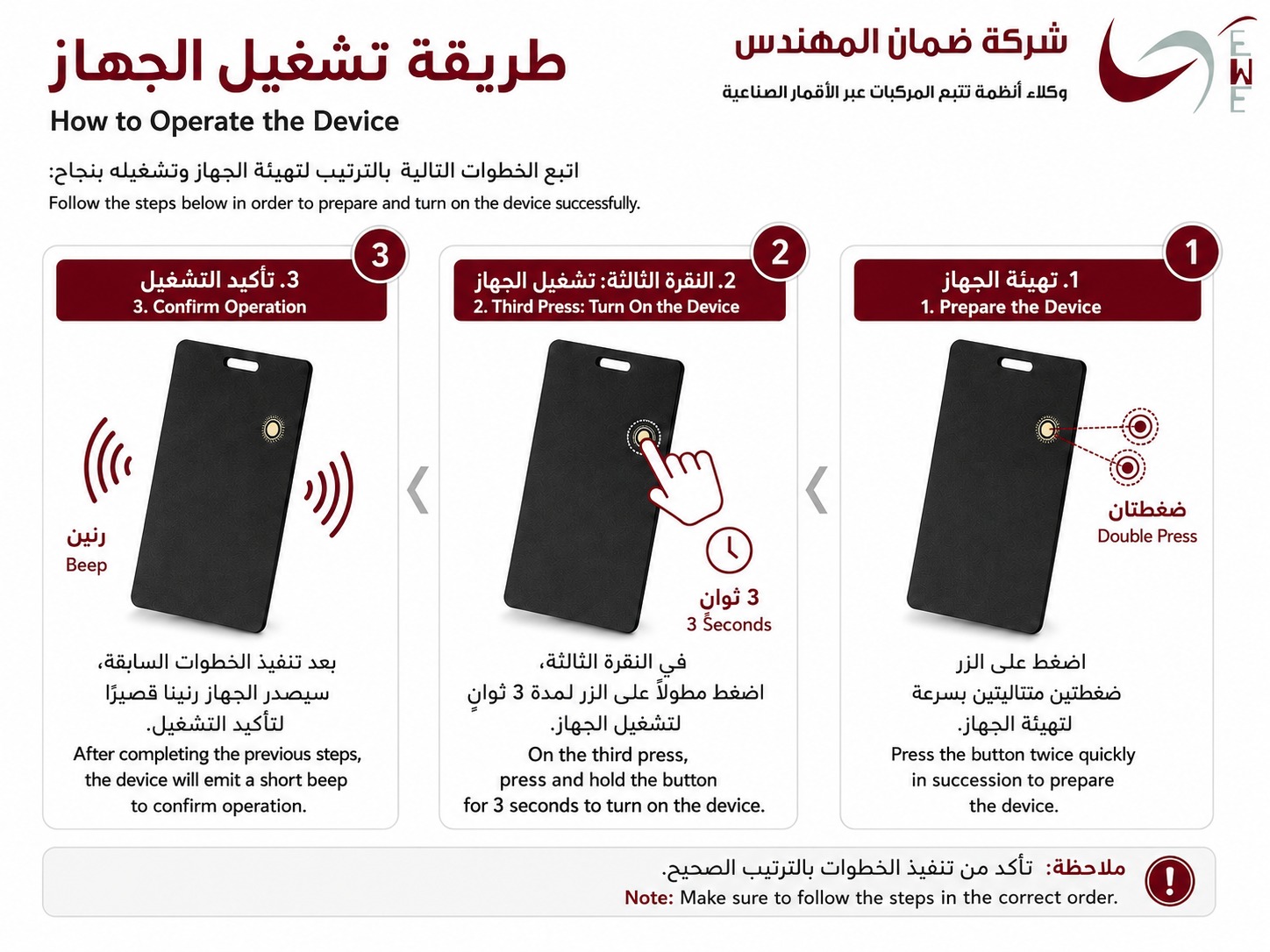
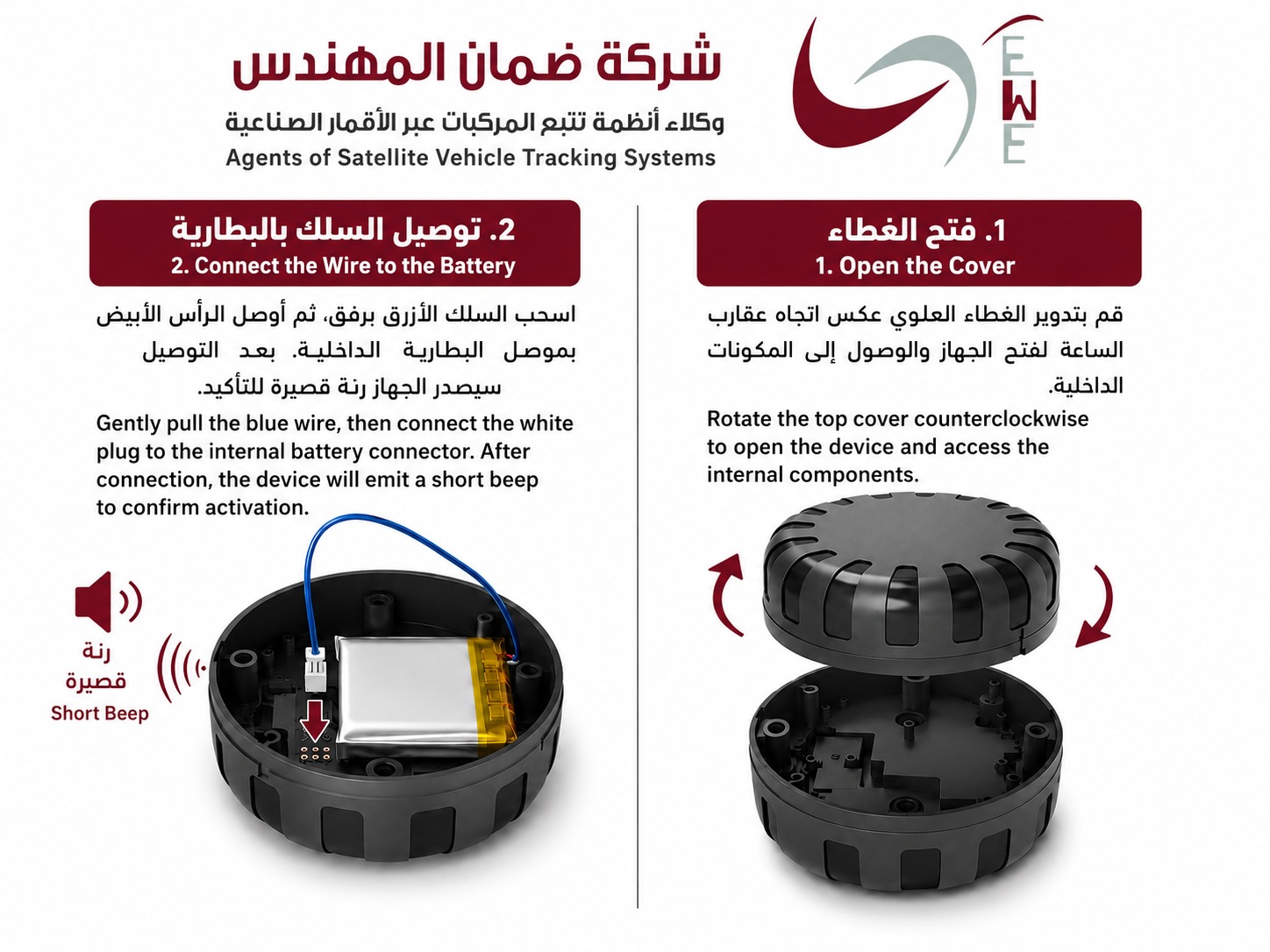
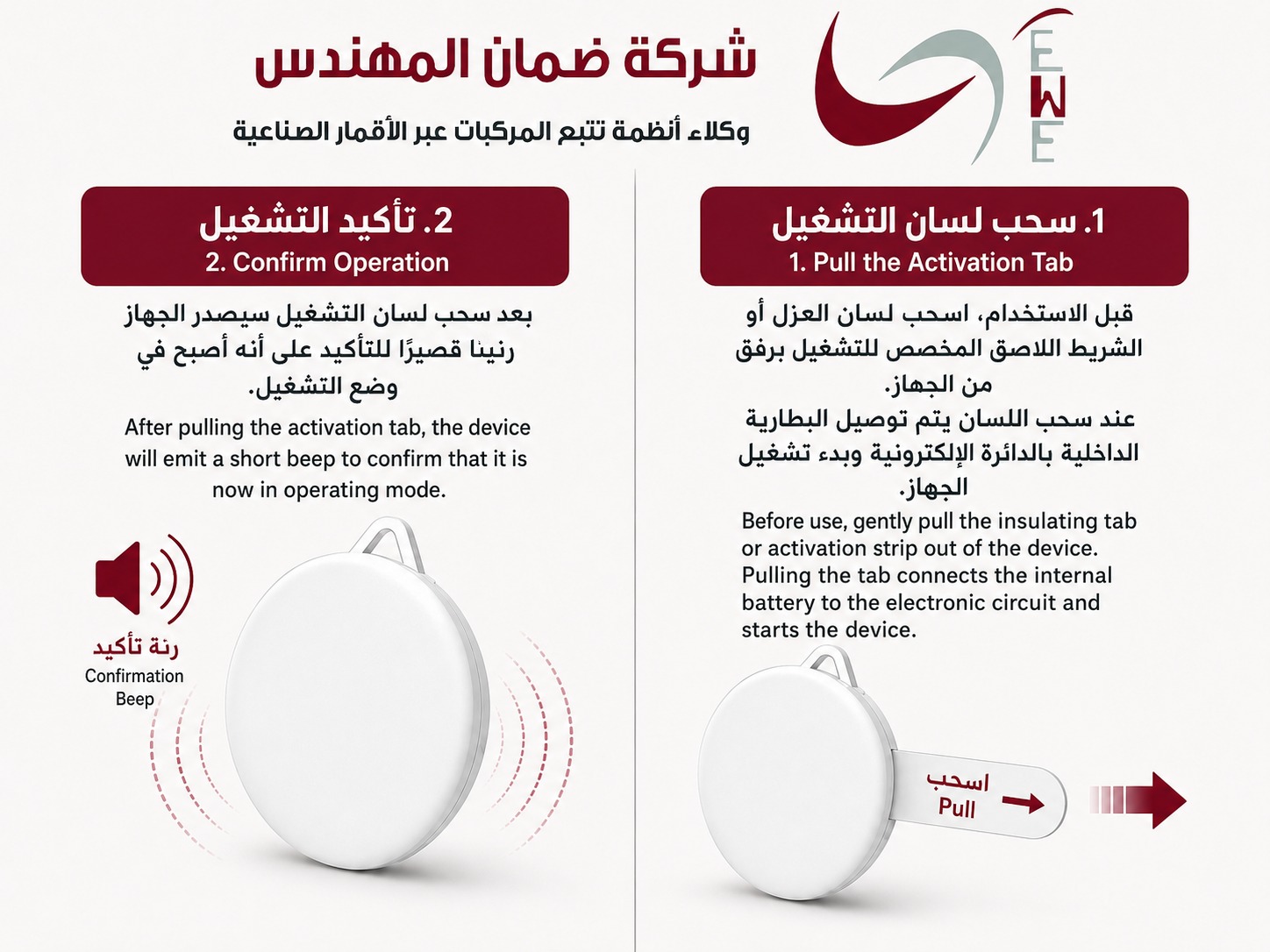
Step 1 of 5 0%

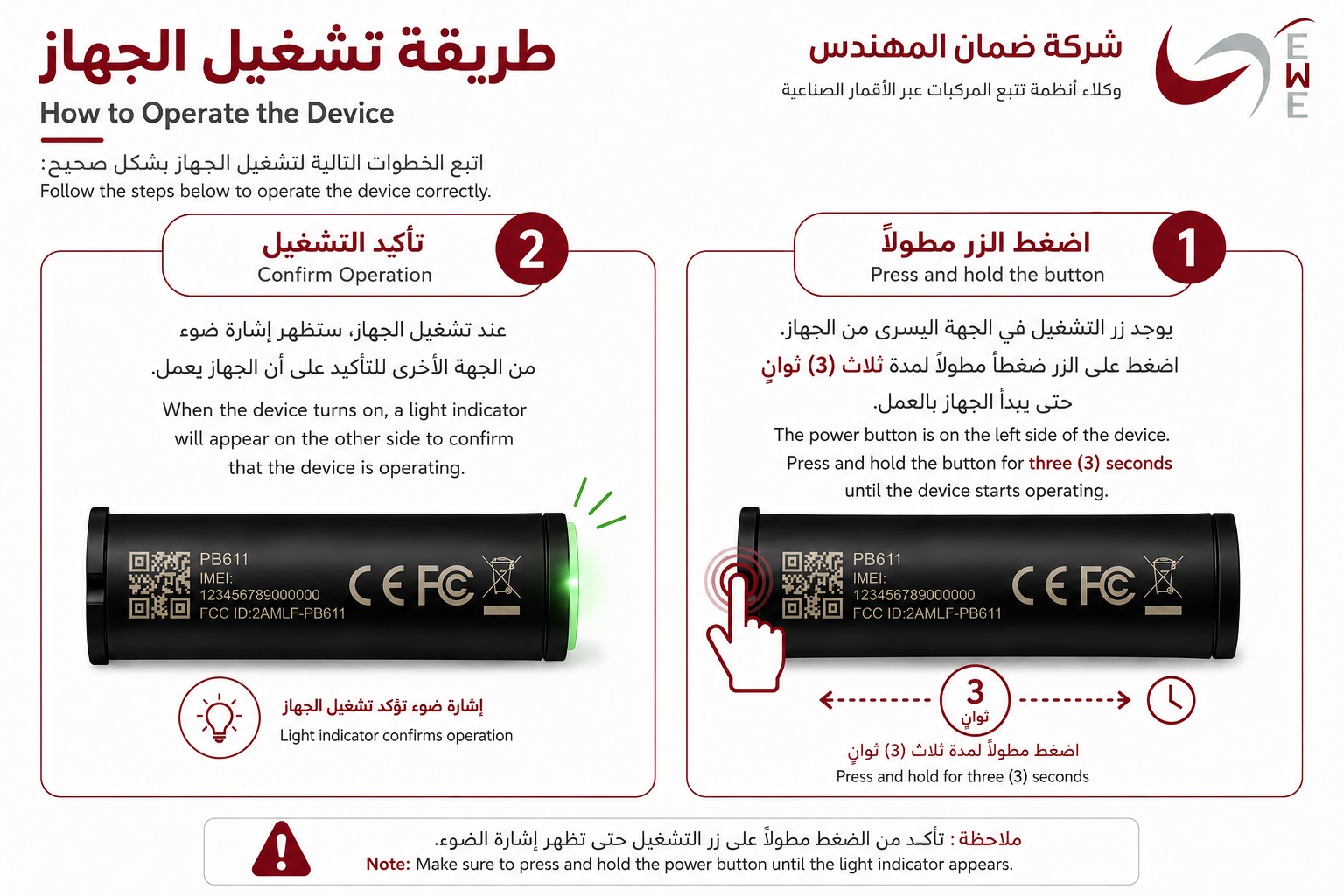
Download the App and Start Activation

Download EWE Tag from Google Play or App Store, then open the app to begin activation.

Download Links

Available on Android and iOS with a fast and clear user experience.
EWE Tag app icon

Sign In to Your Account

Use your email to sign in. If you do not have an account, create one in minutes.
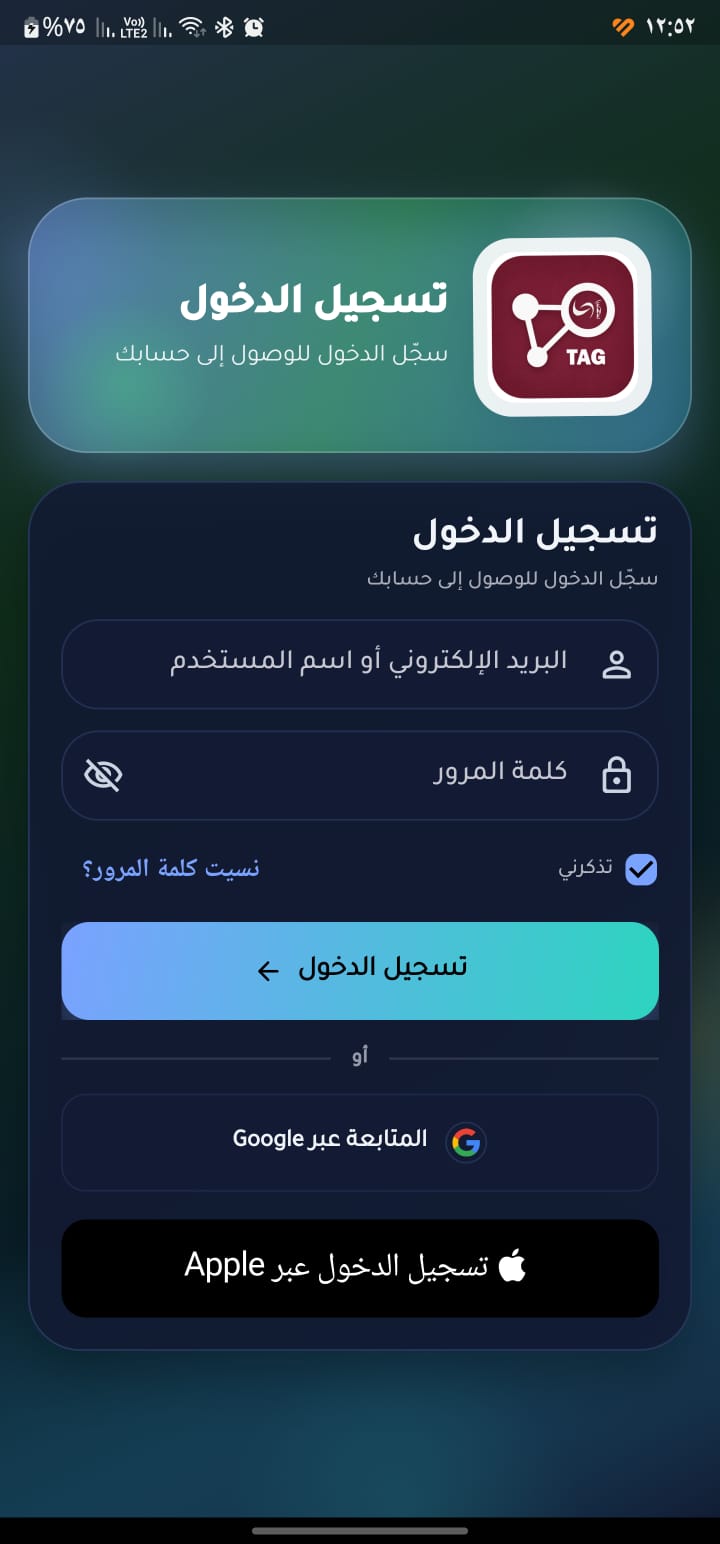
Make sure your login credentials are entered correctly.
Enable notifications to receive device alerts.
Sign in screen
Tap image to zoom

Add Your Tracking Device

In the app, choose Add New Smart Device, then follow the steps to link the tracker to your account.
Add device screen
Tap image to zoom

Enter Device Details

Scan the QR Code to fill details automatically, or enter the IMEI manually if the code is unavailable.
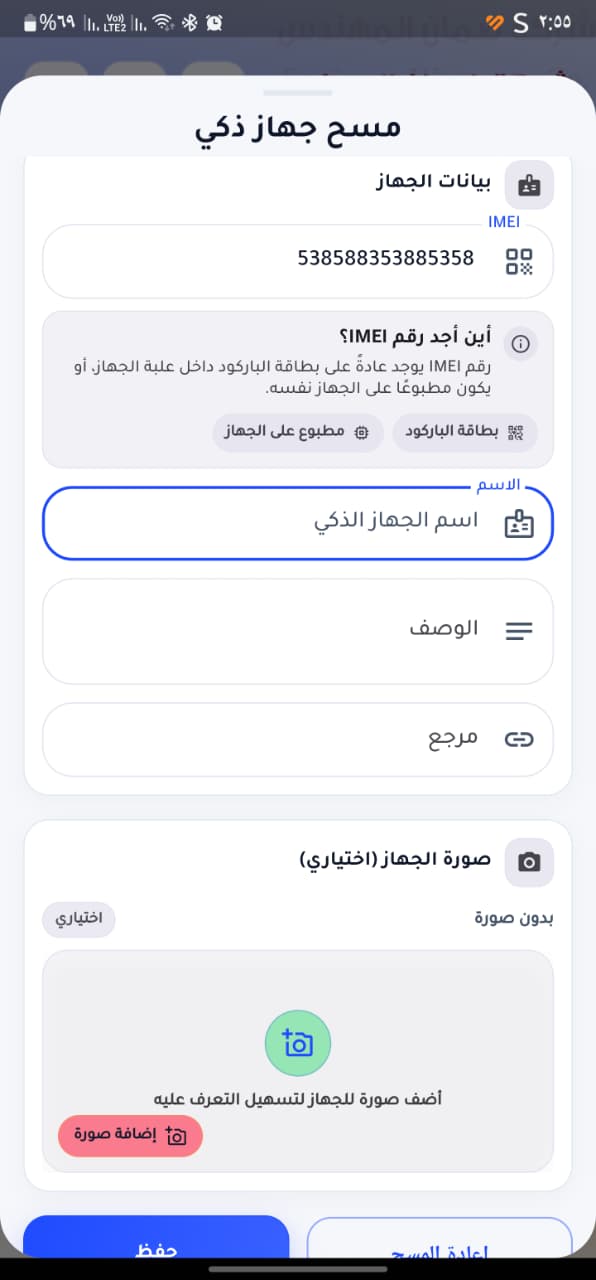
Best option: scan QR Code for faster setup.
Alternative: enter IMEI manually when QR is unavailable.
Device details screen
Tap image to zoom

Start Live Tracking

Once activation is complete, follow your device on the map and receive instant updates and alerts.
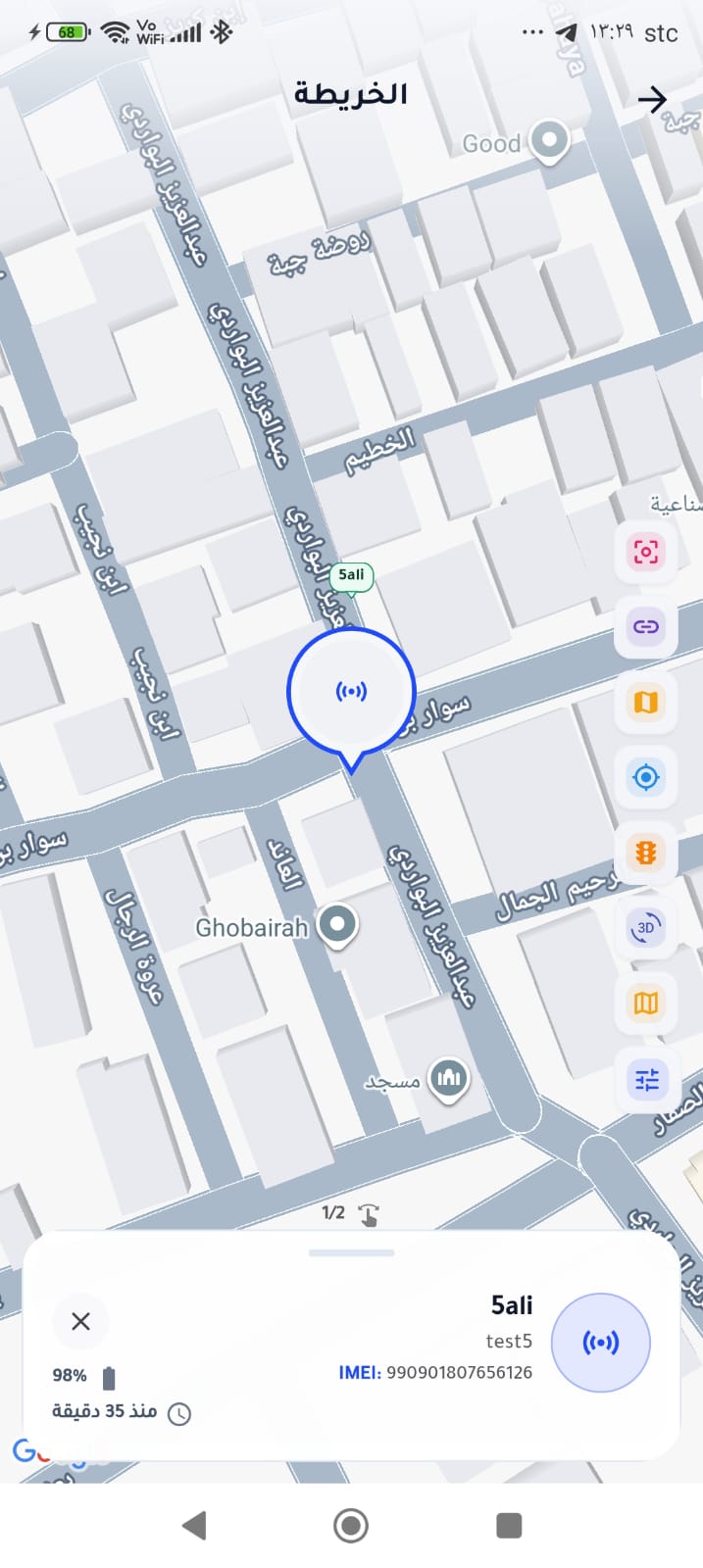
Live tracking map screen
Tap image to zoom

Dashboard & Device List

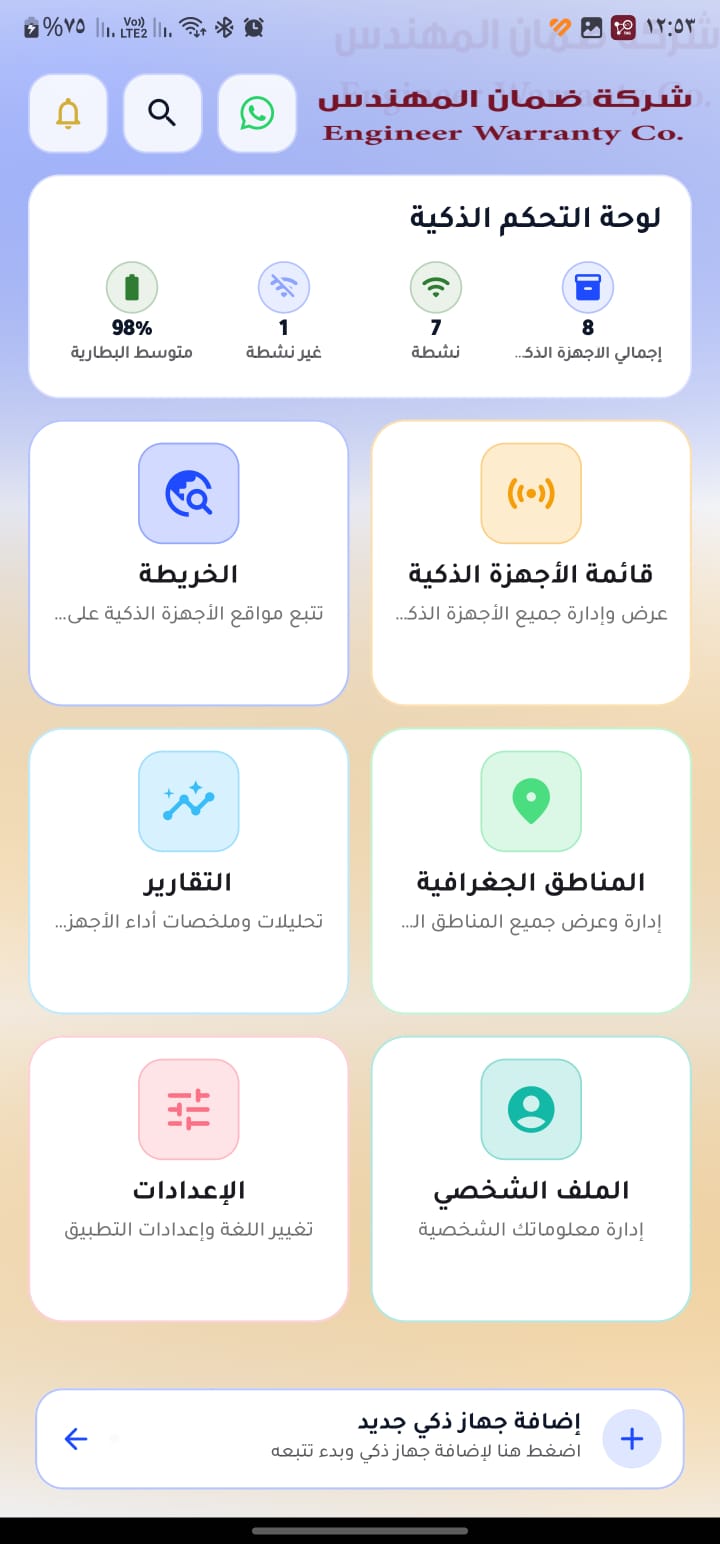
Start from the main dashboard and access your devices quickly.
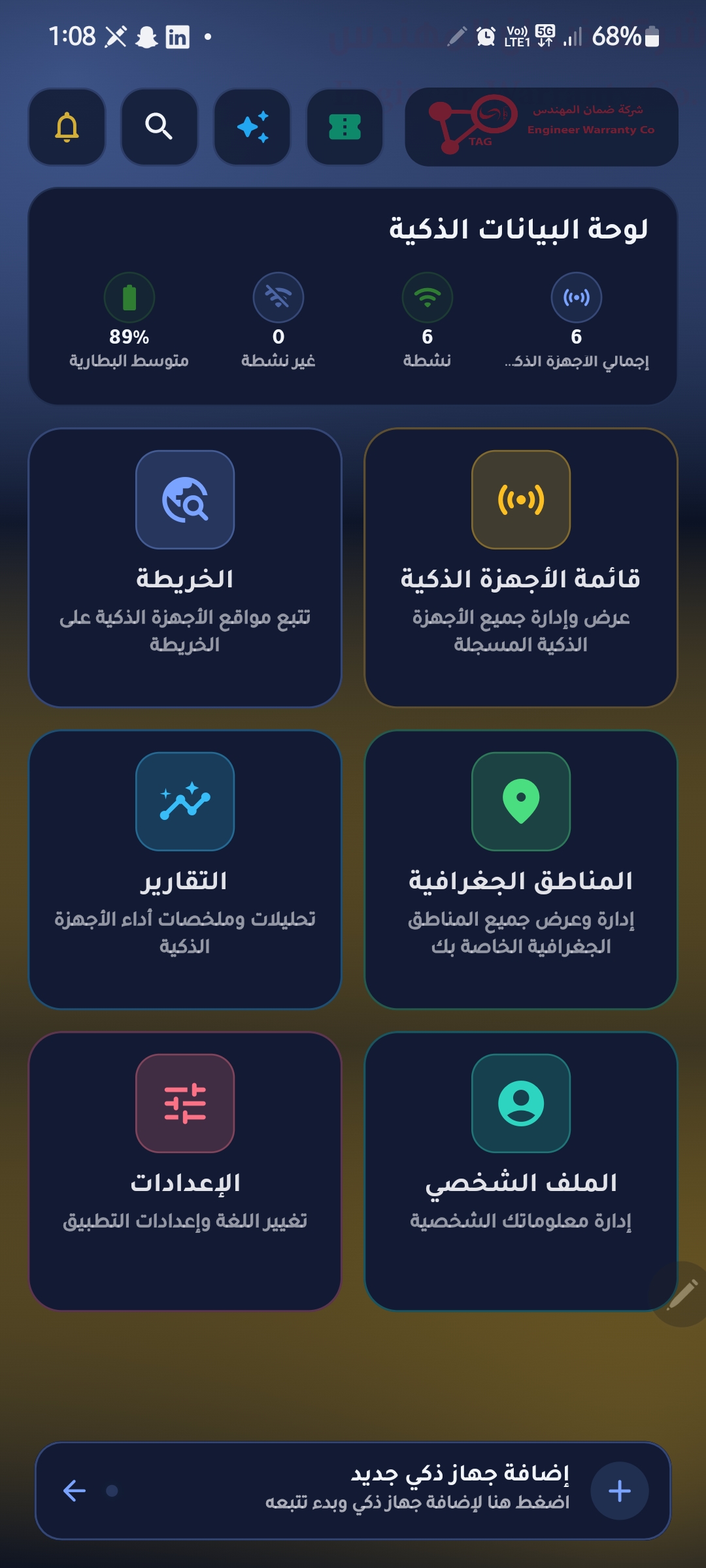
Dashboard page
Dashboard page
Smart devices list icon

Notifications & Search

Use alerts for quick updates and search to find devices fast.
Notification icon
Notification icon
Search icon
Search icon

Live Map Tracking

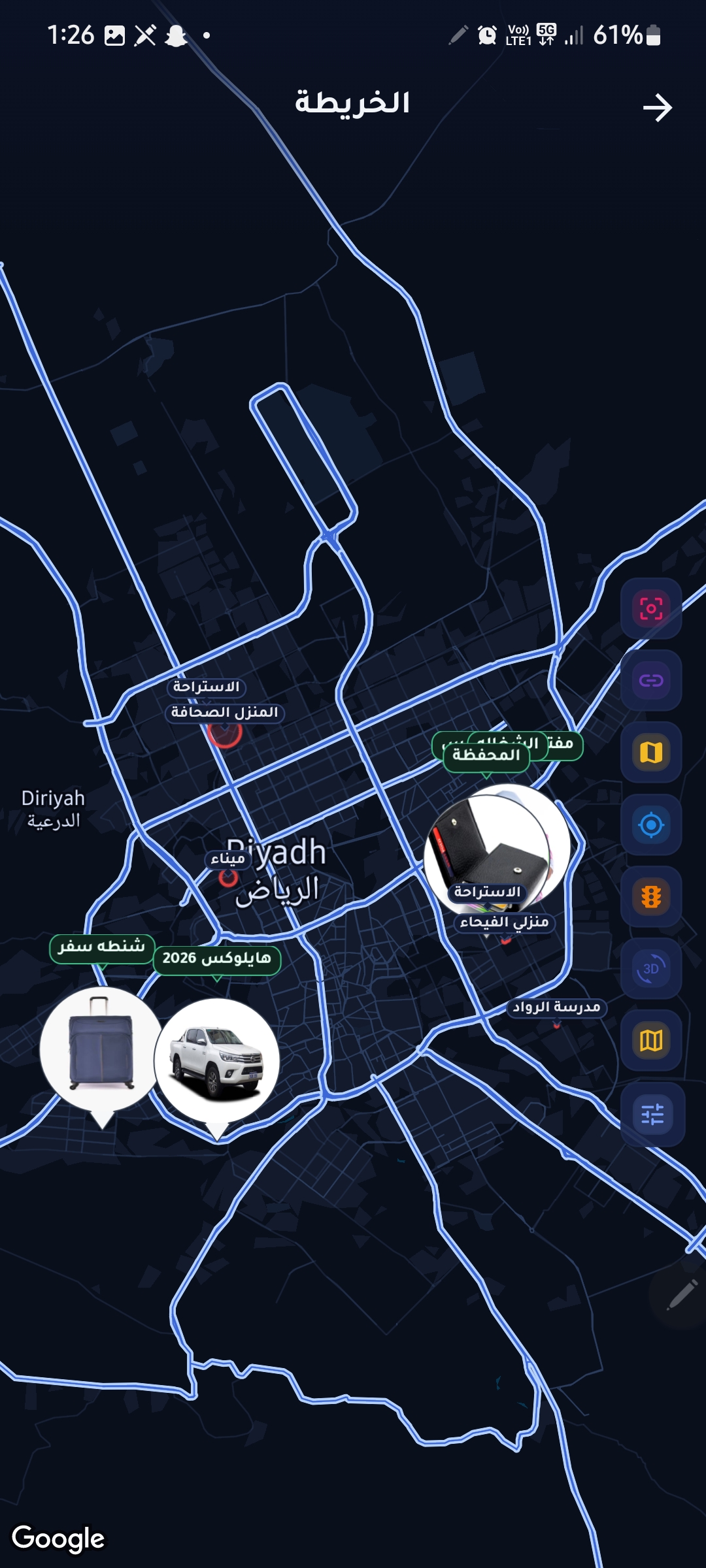
Open the map and follow live positions instantly.
Map icon
Map icon
Map page
Map page

Map Tools & Geofencing

Use map tools, then configure geographical area controls.
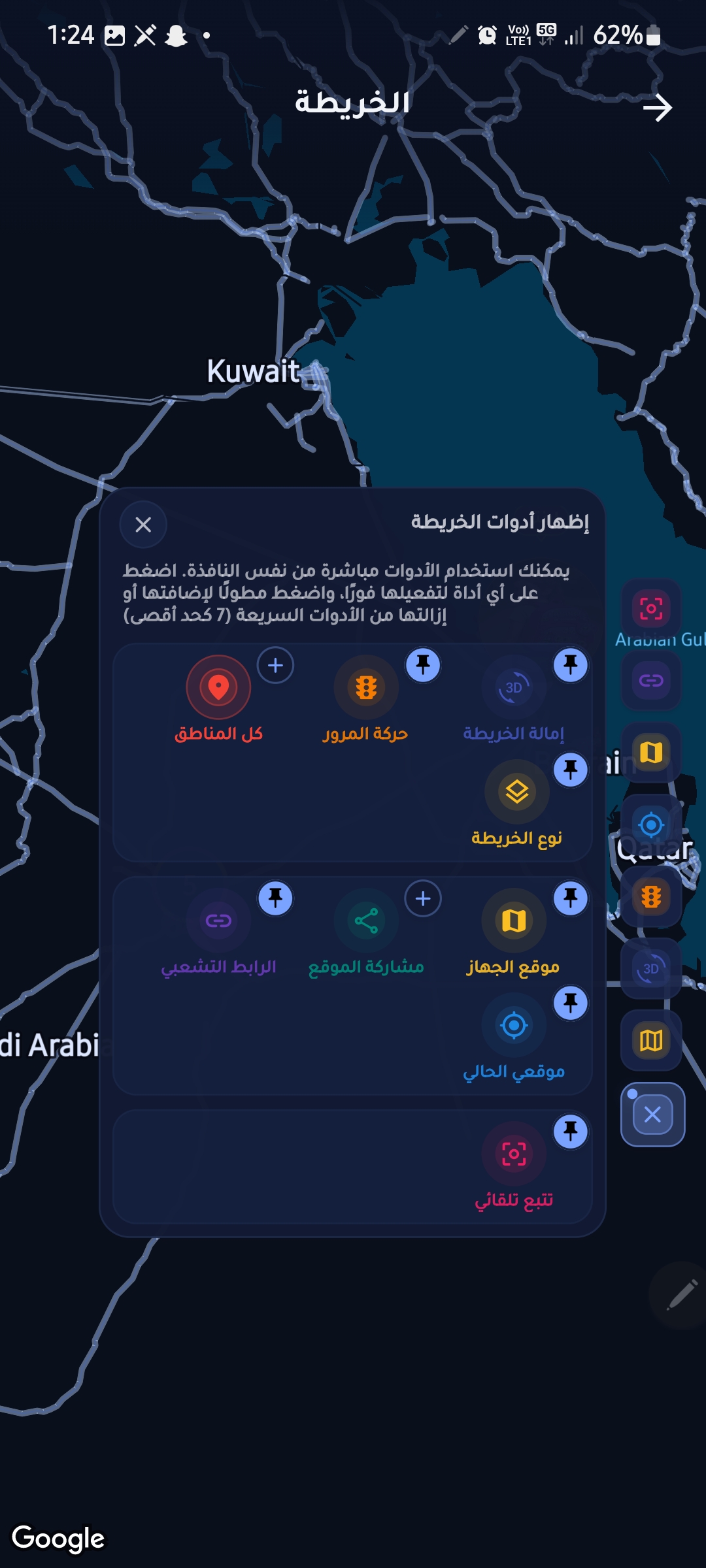
Map tools page
Map tools page
Geographical area icon

Regions & Reports Entry

Open geographical regions, then continue to reports.
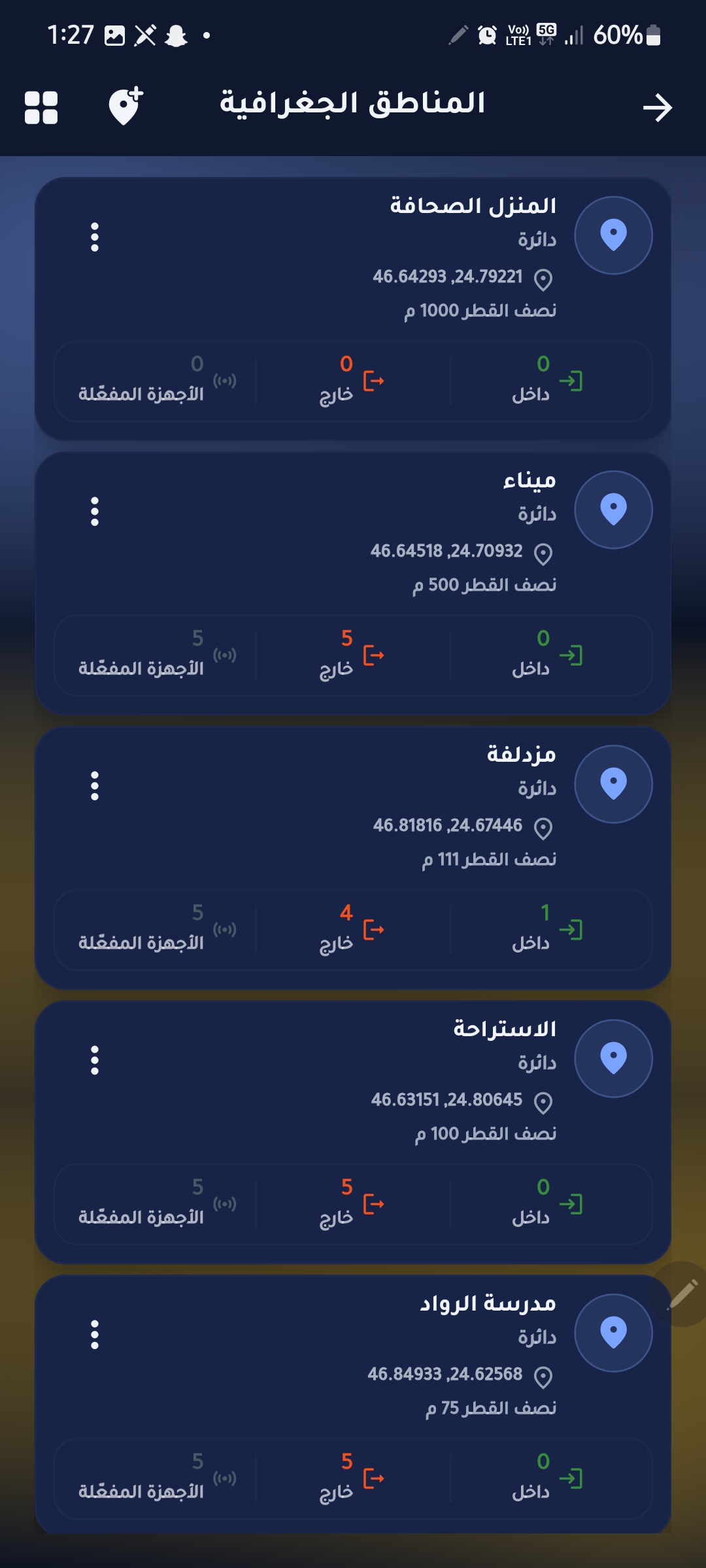
Geographical regions page
Reports icon
Reports icon

Reports & Traffic Analysis

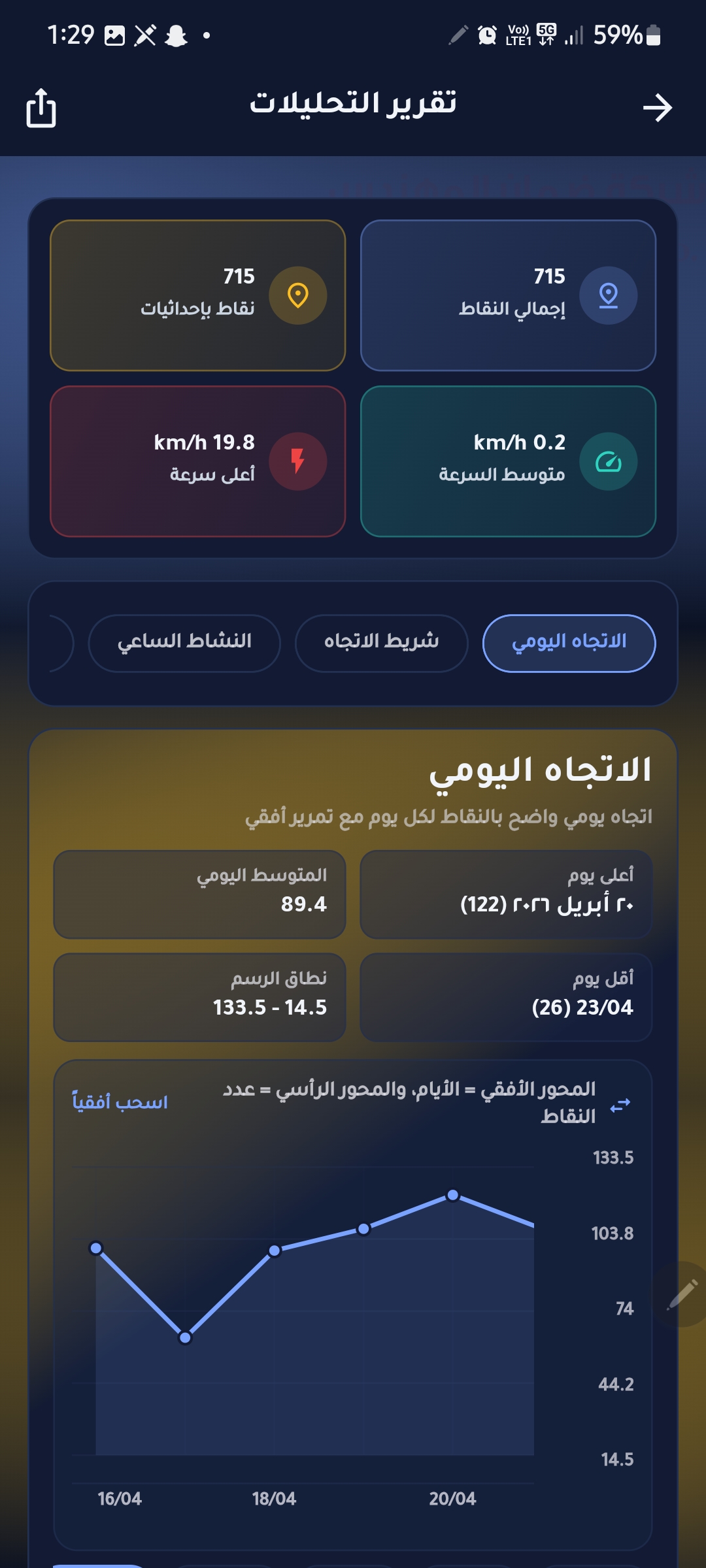
Review the main reports screen and traffic analysis.
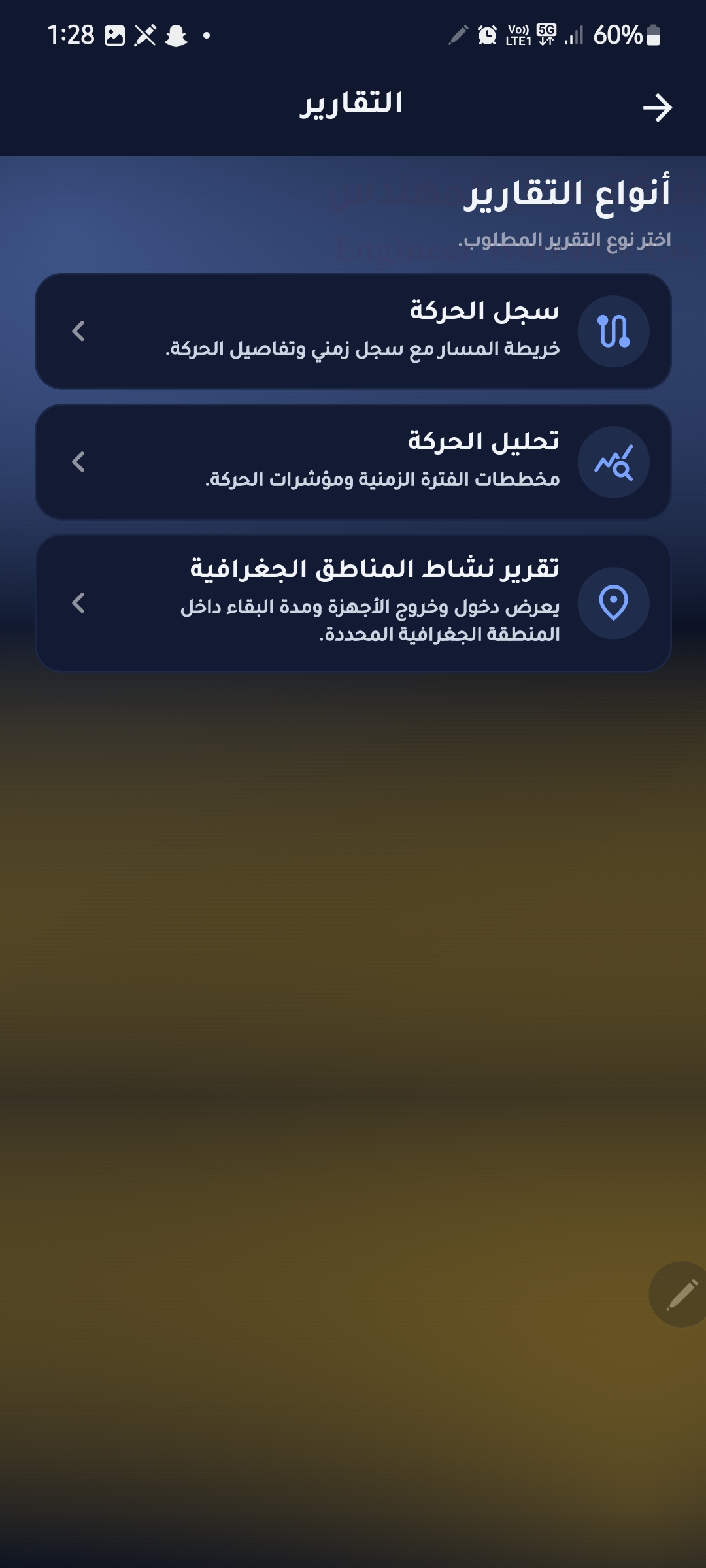
Reports page
Reports page
Traffic analysis report page
Traffic analysis report

Geographical Activity Reports

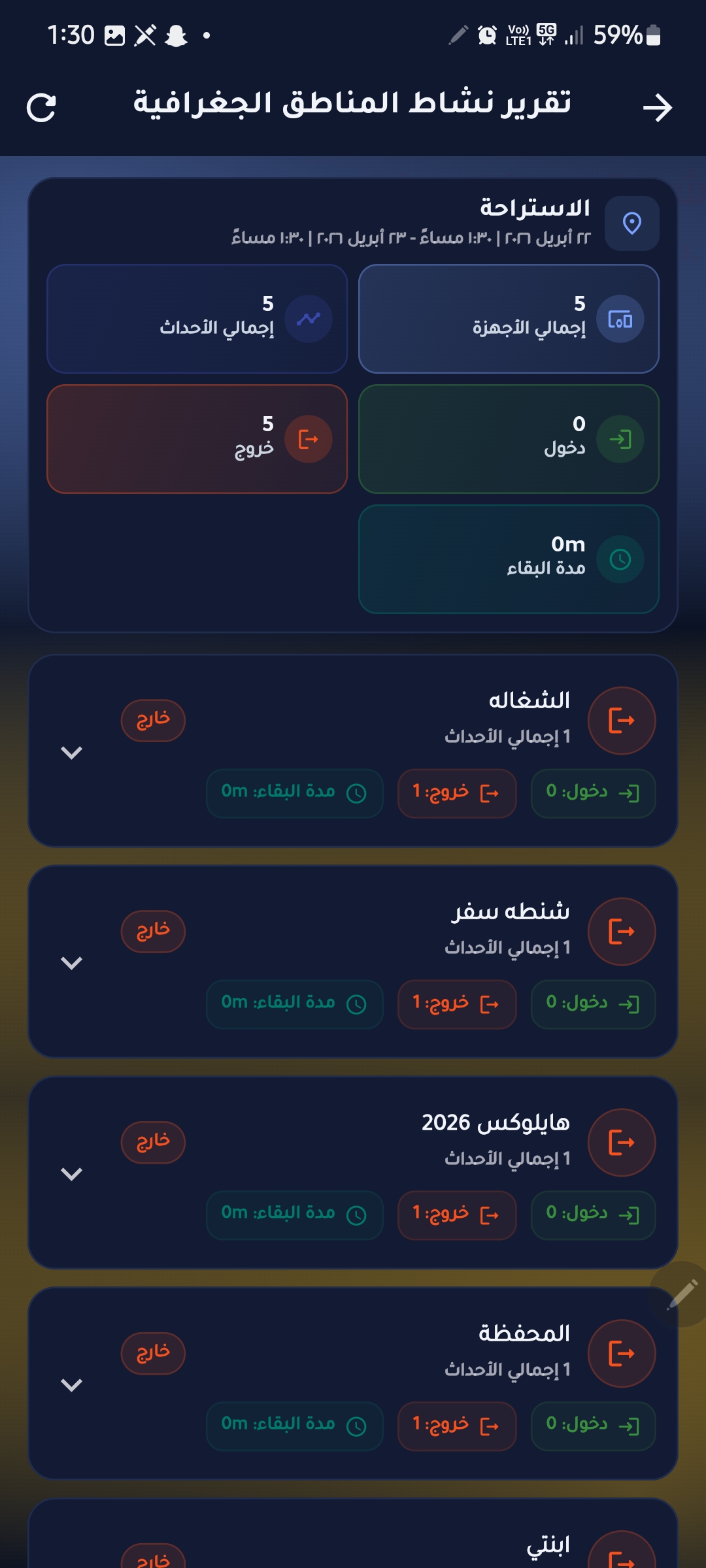
View area activity reports across two report pages.
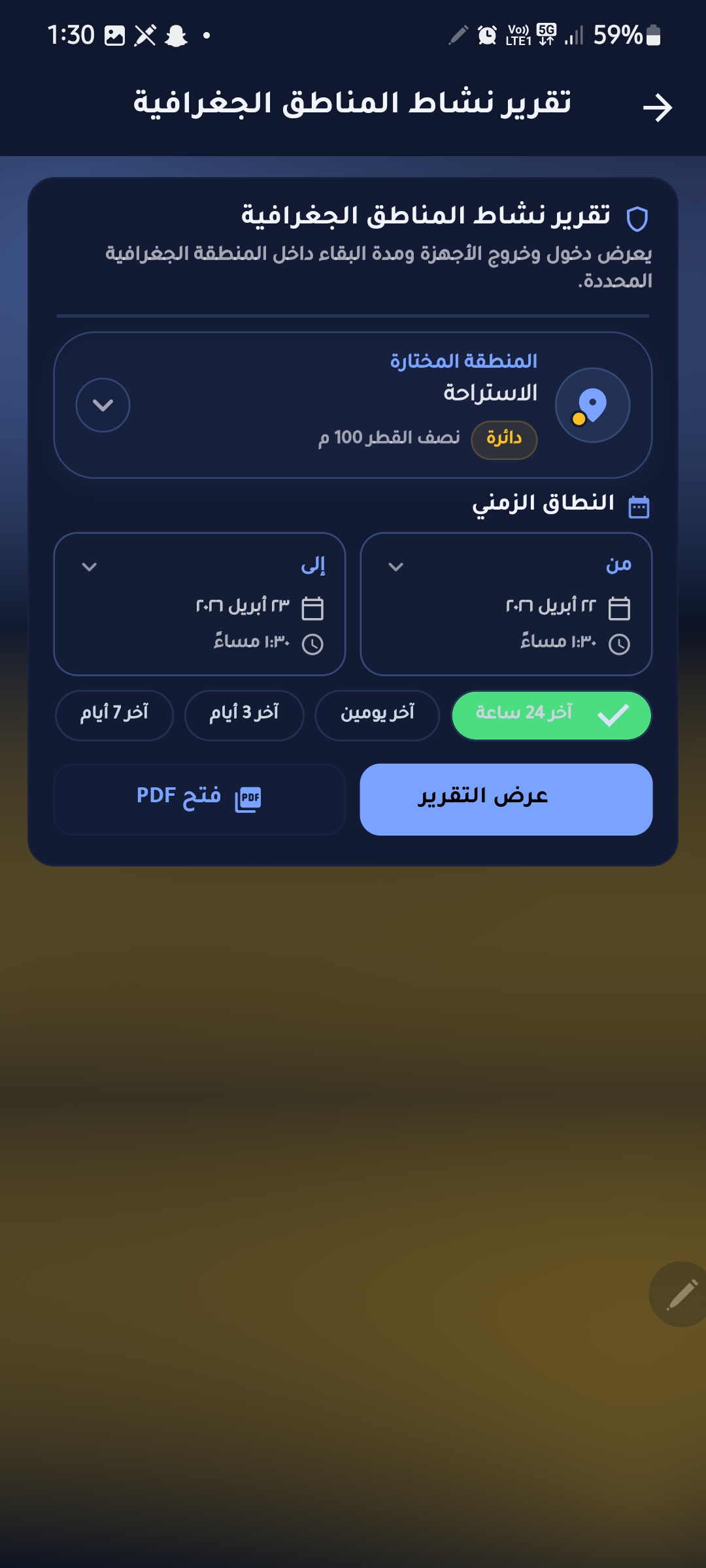
Geographical areas activity report page
Geo activity report - page 1
Geographical areas activity report page two
Geo activity report - page 2

Transaction History

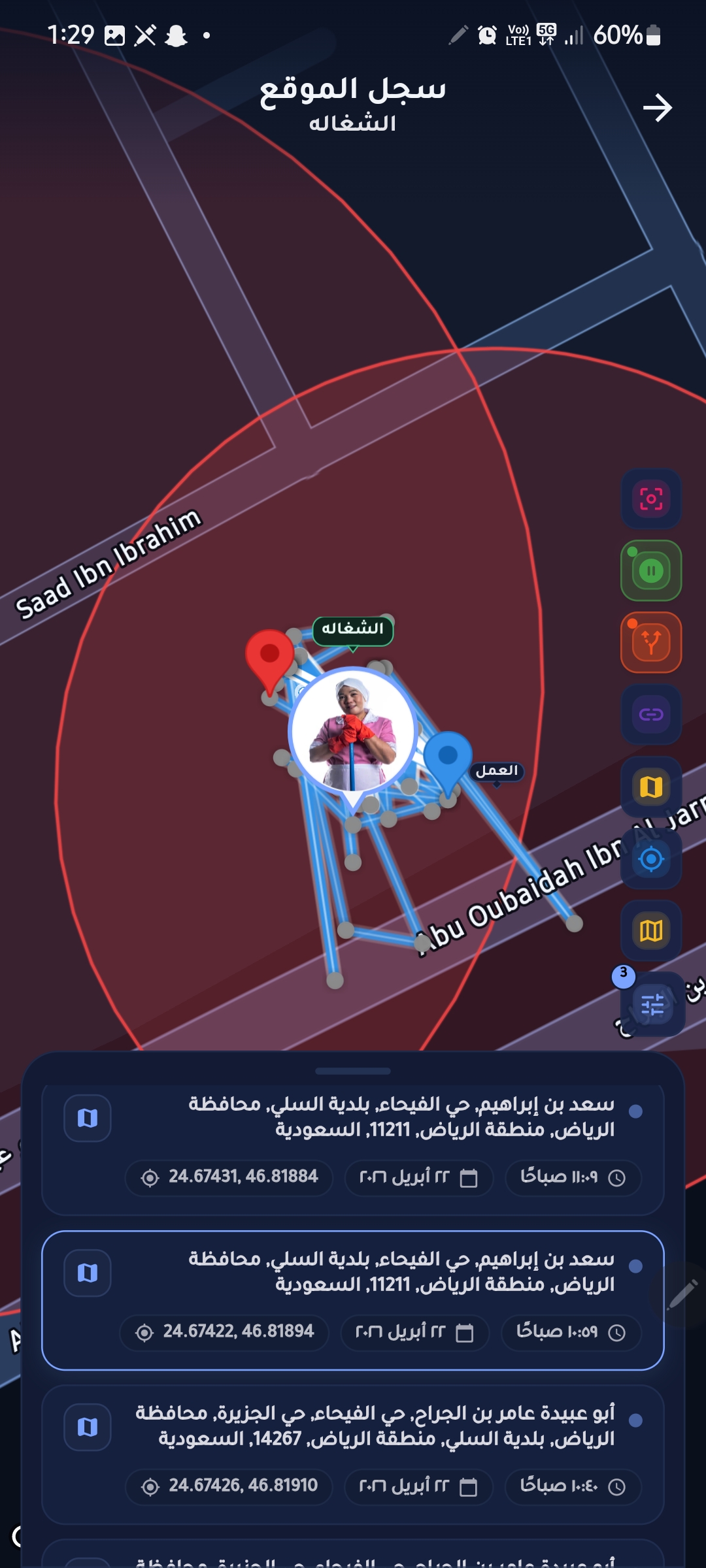
Open the history report and inspect transaction details.
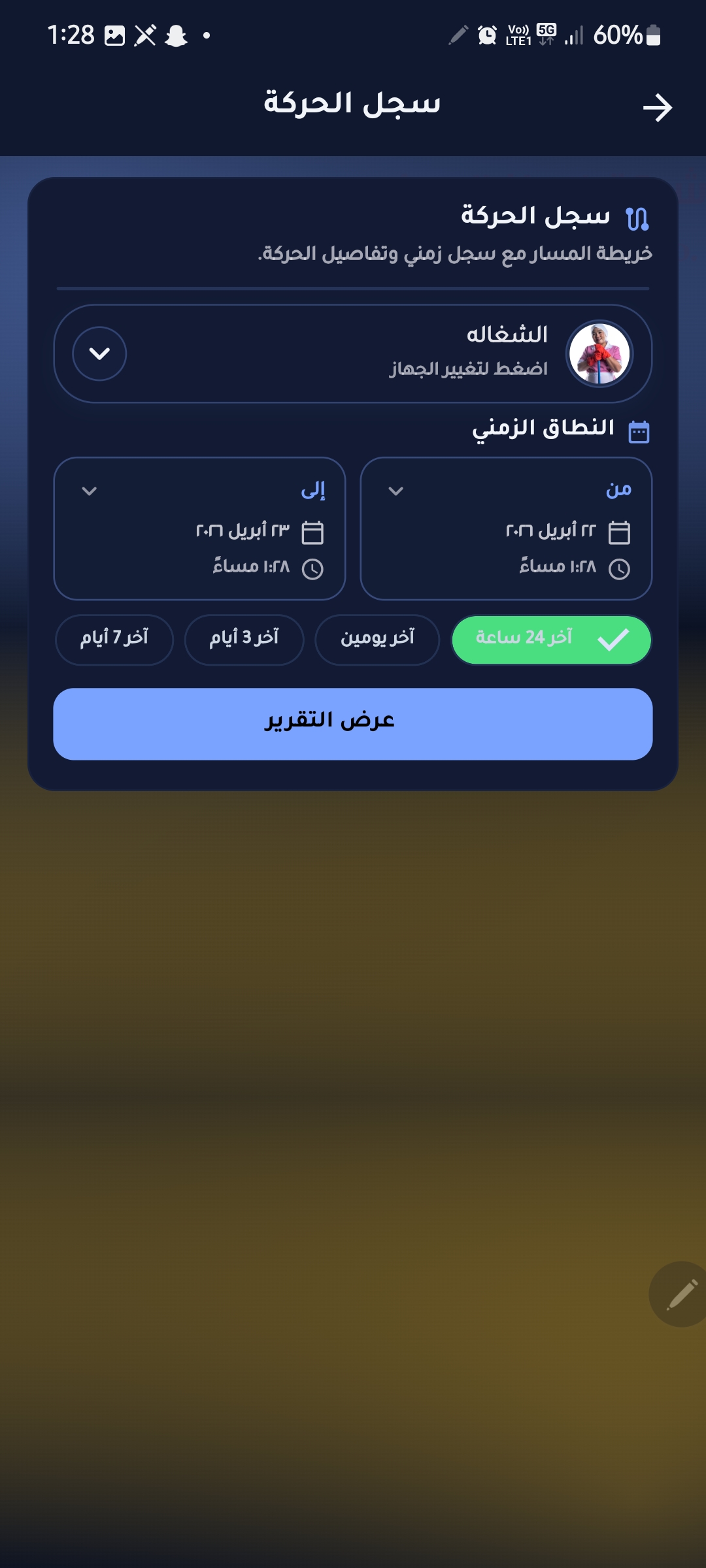
Transaction history report page
Transaction history report
View transaction history page
Transaction history details

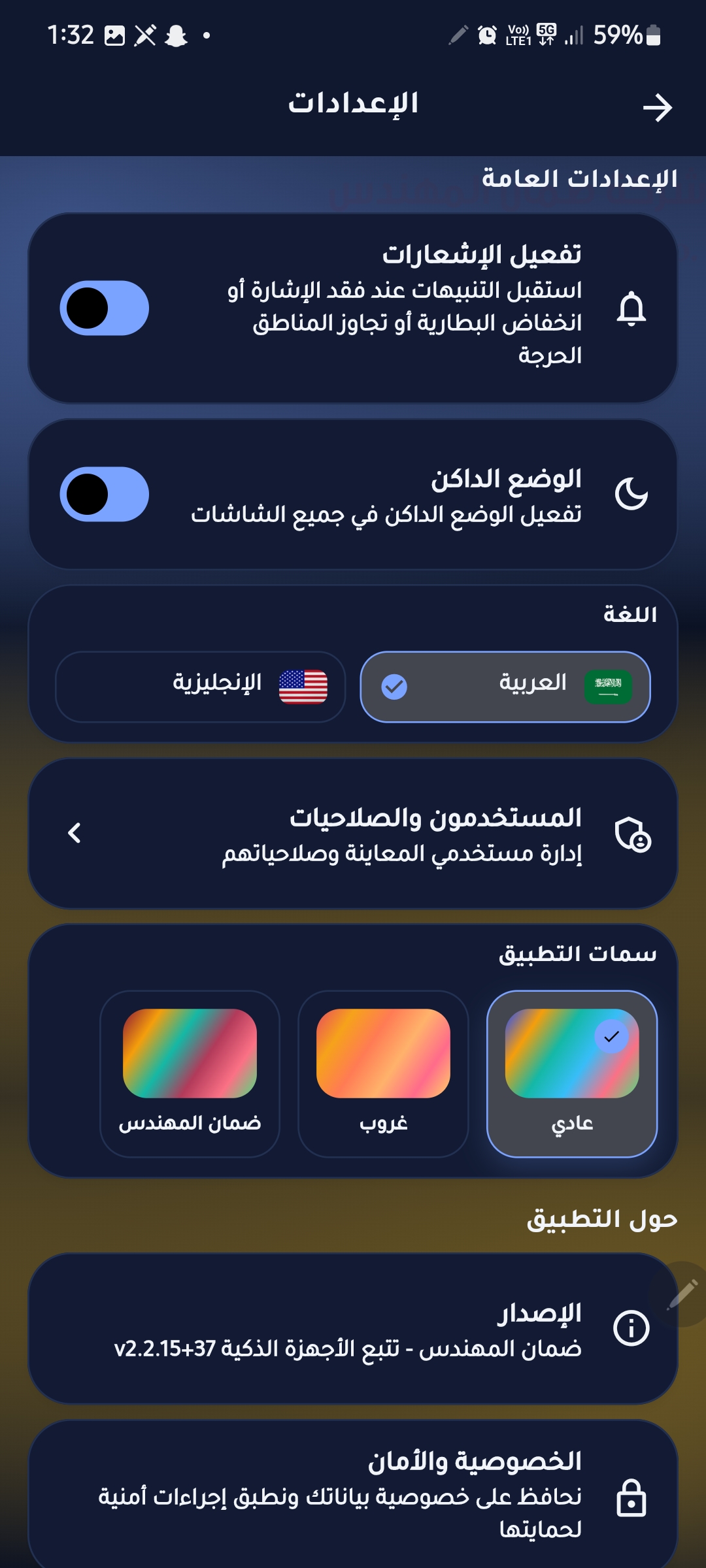
Settings

Open settings to configure app behavior and preferences.
Settings icon
Settings icon
Settings page
Settings page

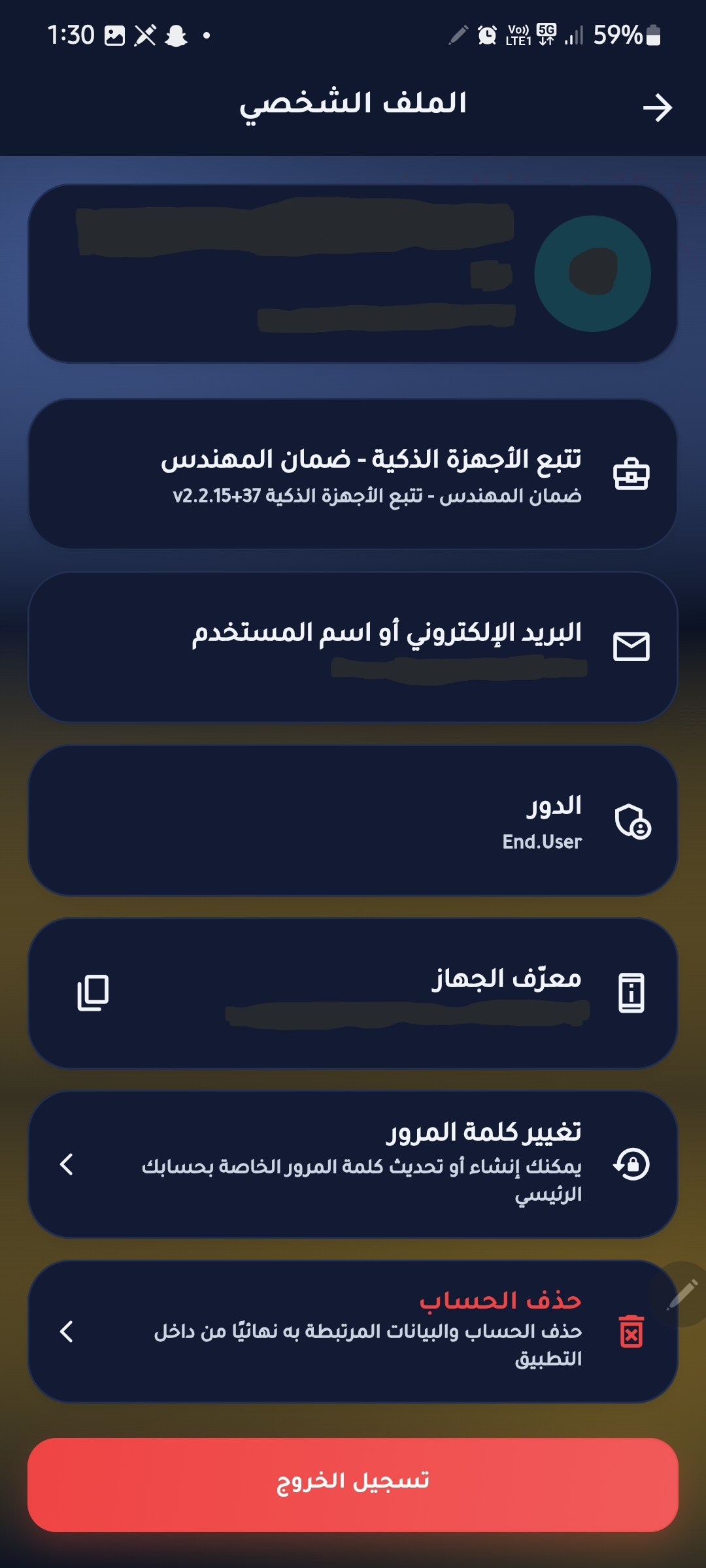
Profile

Manage profile information and account data.
Profile icon
Profile icon
Profile page
Profile page

Users & Permissions

Manage assigned users and define permissions clearly for each account.

Add users icon
Users and permissions icon
Add assigned user page

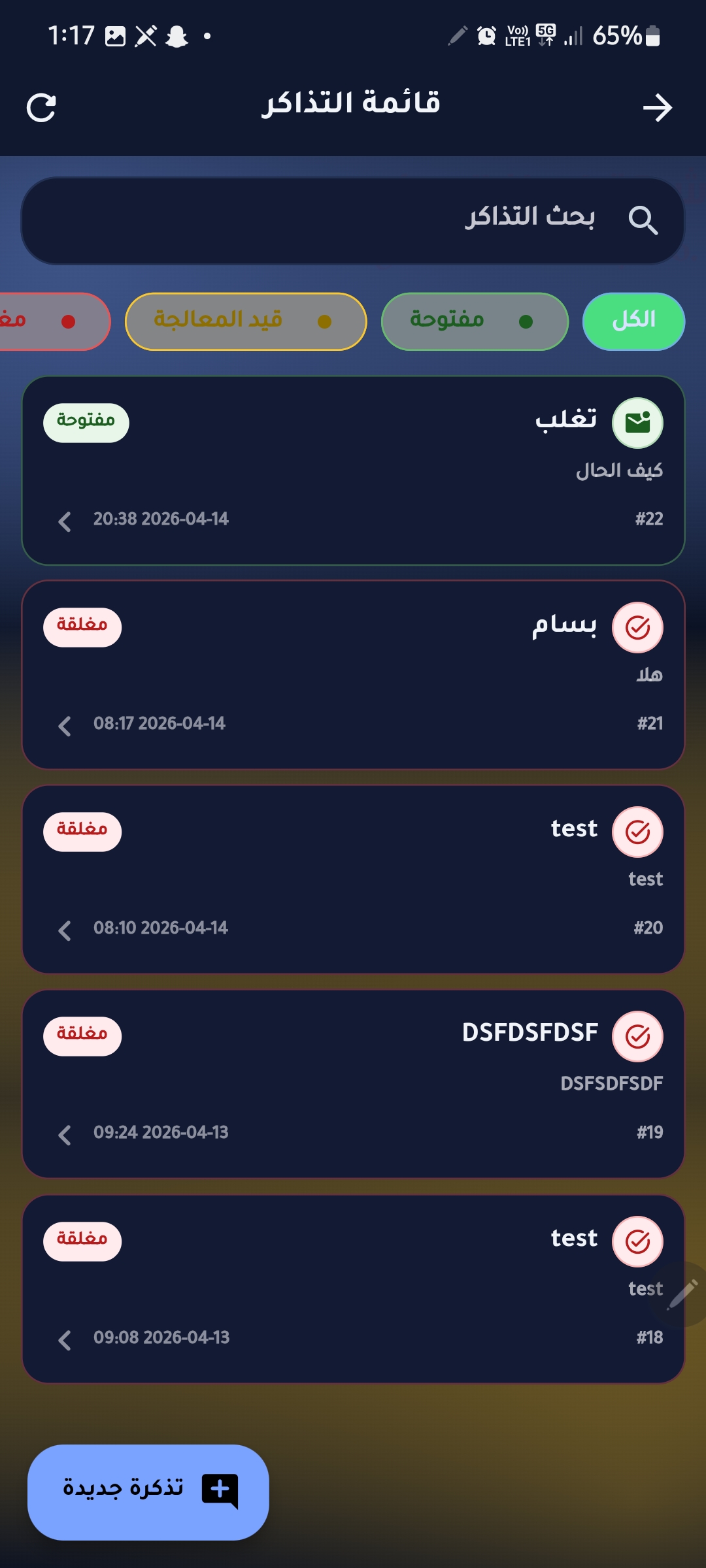
Tickets & Support

Create support tickets and follow their status.
Ticket icon
Ticket icon
Ticket page
Ticket page

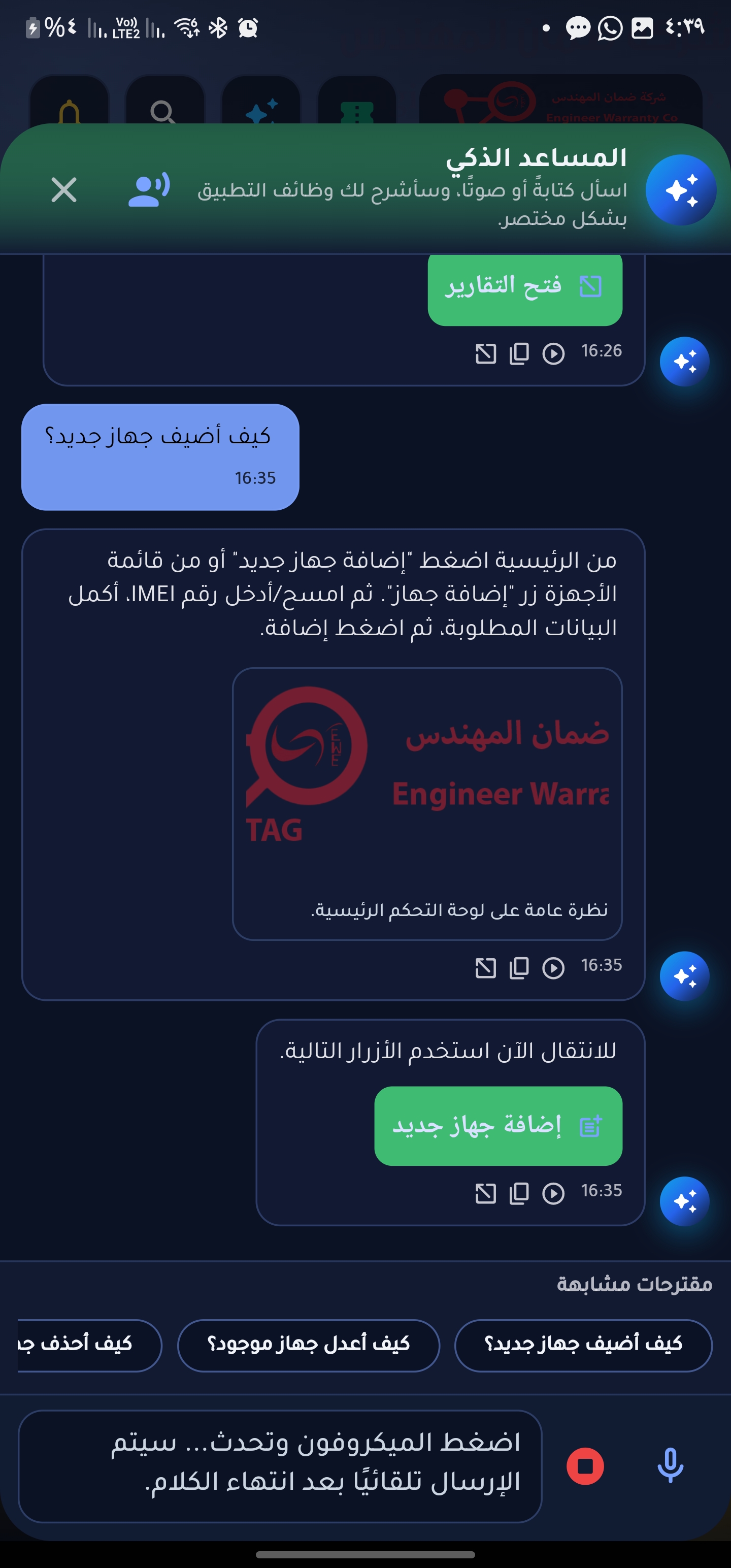
Smart Assistant

Use the assistant for quick in-app help.

Smart assistant icon
Smart assistant page